LinkedIn how-to
How to Schedule a LinkedIn Post (2026)

Aitijya Sarkar · Updated
Founder - Oiti | LinkedIn ghostwriting | 100M+ views
Quick answer: Write your post, click the clock icon next to the Post button, pick a date and time, click Confirm, then click Schedule. To find it again, open the same clock and switch to the Scheduled tab, where the ⋯ menu lets you post it now, change the time, edit it or delete it.
LinkedIn's scheduler is free on every account, and it's easy to miss: one small clock icon in the post composer. I ghostwrote LinkedIn posts for about six years, for 50 to 60 founders, coaches and consultants, and most of those posts went out on a timer while the client was in a meeting or asleep. I still schedule my own the night before. I took these screenshots in September 2026, so the button names match what you'll see today, including the ones older guides get wrong (it's Confirm now, not Next).
How to schedule a post on LinkedIn (desktop)
- 01
Write the post.
Click Start a post at the top of your feed and write it the way you normally would. Text, images, documents, videos and polls can all be scheduled from a personal profile.
- 02
Click the clock icon.
It sits just left of the blue Post button. Hover over it and LinkedIn labels it "Schedule for later".
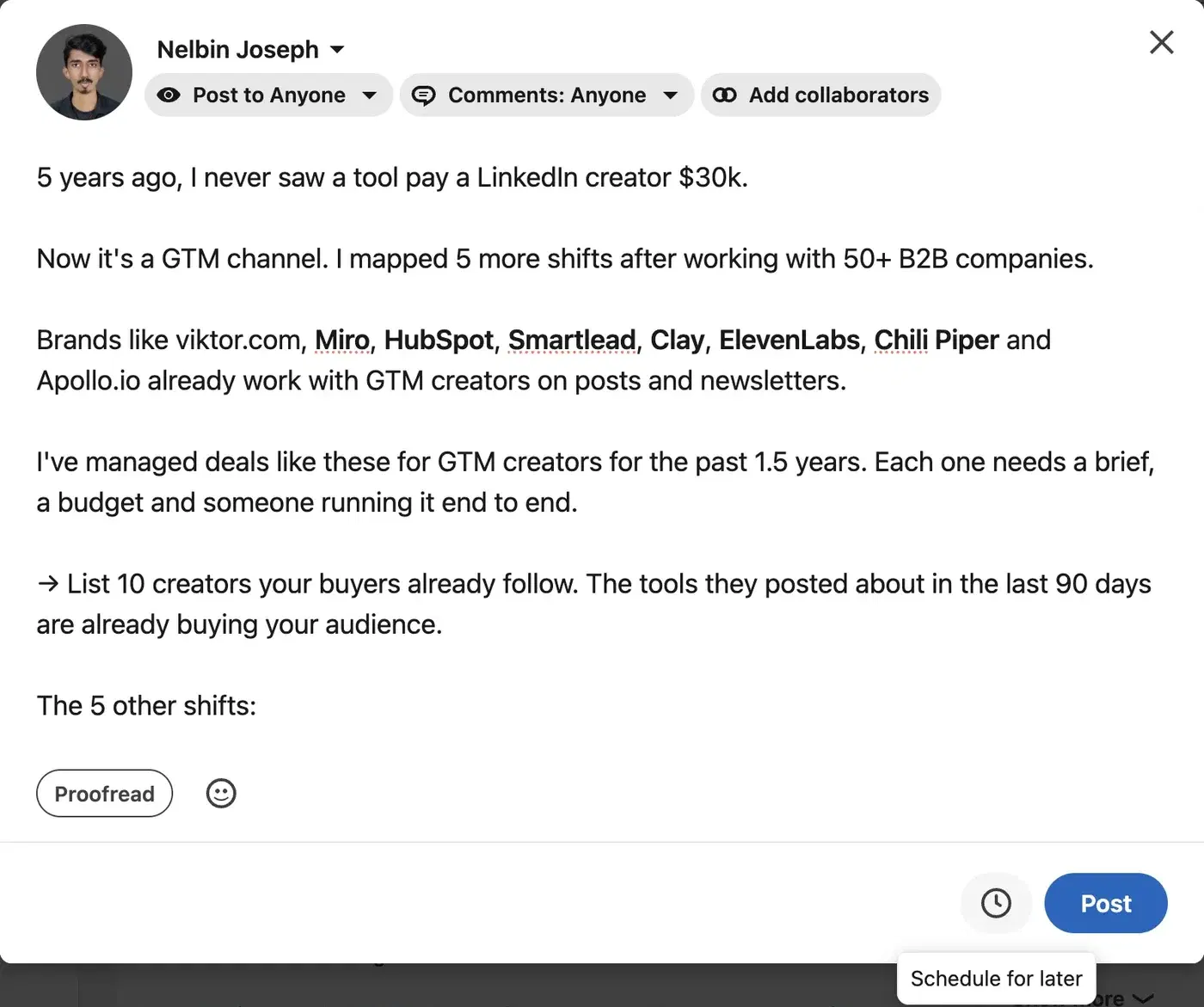
The clock icon next to Post opens scheduling. - 03
Pick a date and time.
The time picker moves in 15-minute steps, and LinkedIn shows a "Posting at" line under the fields so you can check the result. LinkedIn Help says you can schedule from 10 minutes to 3 months ahead; a slot that's too soon gets rejected.
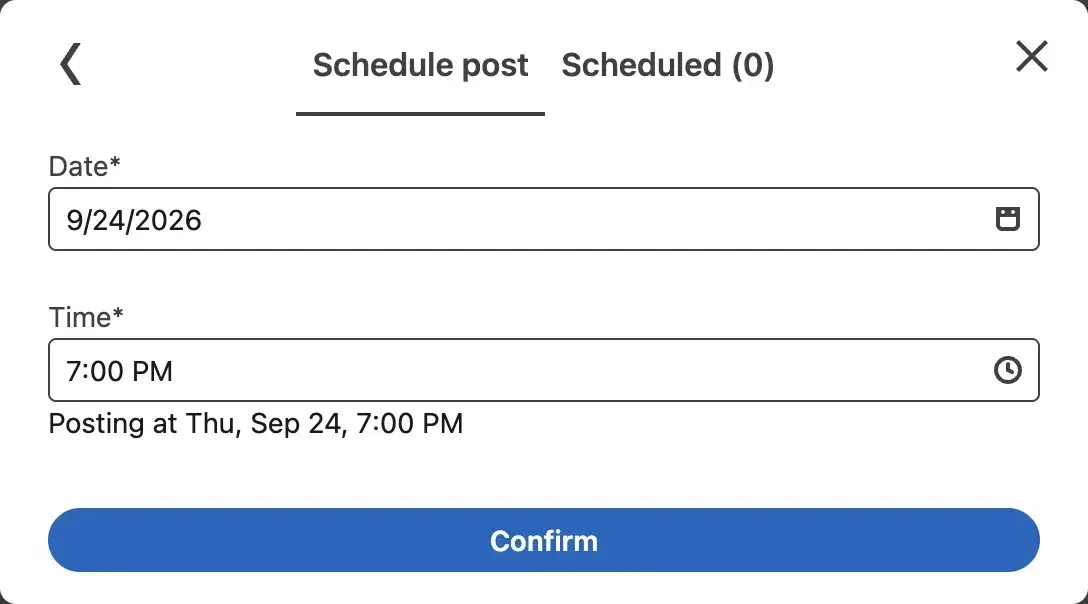
Pick a date and time, then click Confirm. - 04
Click Confirm.
You're back in the composer. The Post button now reads Schedule, and a "Posting at … Edit" line sits under your text. Click Edit if you picked the wrong slot.
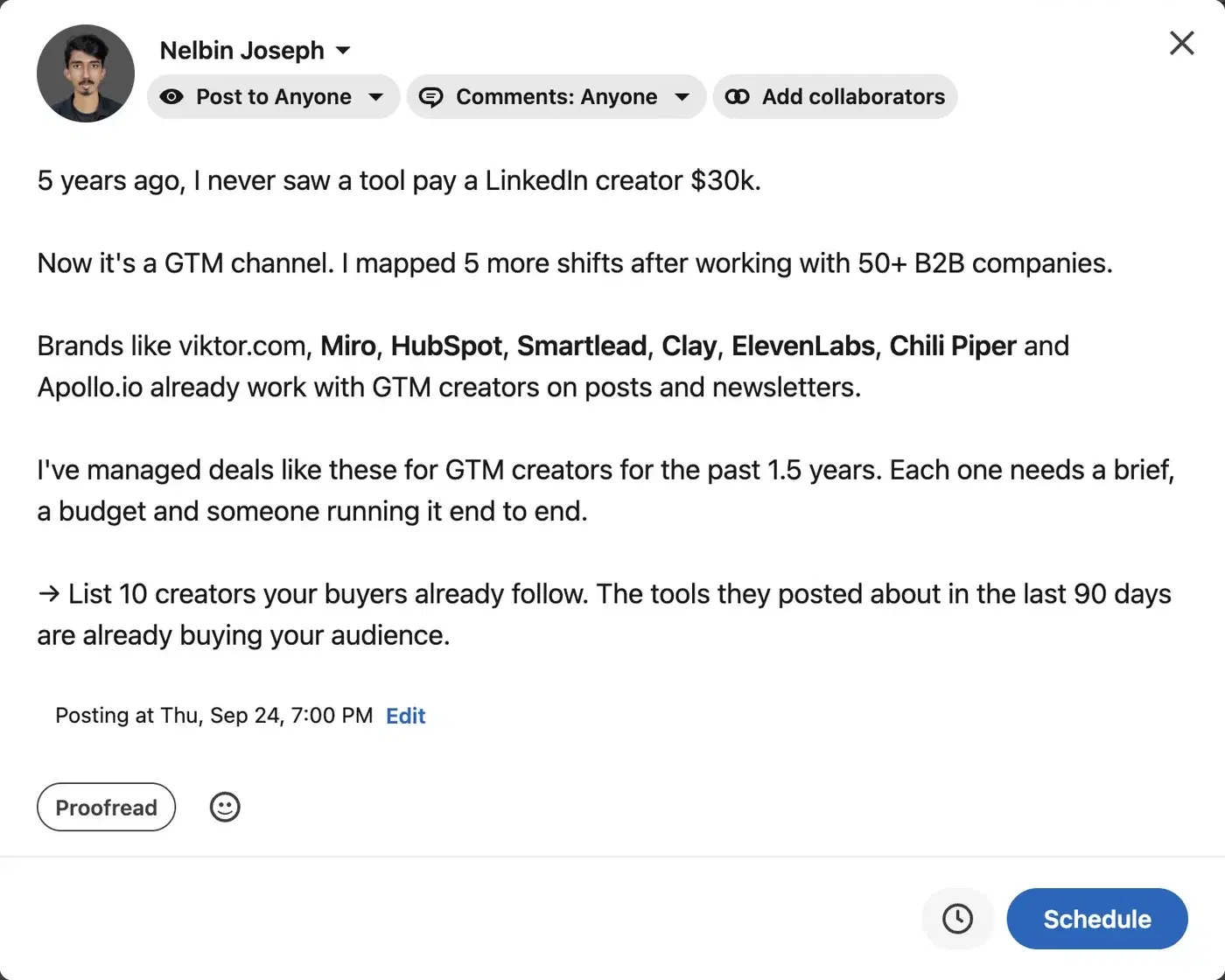
Back in the composer, the Post button becomes Schedule. - 05
Click Schedule.
The post goes live on its own at that time. Until then, nobody else can see it.
Scheduling a repost works the same way: click Repost, choose Repost with thoughts, and the same clock icon is there. Repost instantly publishes straight away and can't be scheduled. More on that in how to repost on LinkedIn.
How to schedule a LinkedIn post on the mobile app
The app works the same way; only the clock moves. Per LinkedIn Help, it sits at the top right of the post composer instead of next to the Post button. Tap it, set the date and time, confirm, and tap Schedule.
Source: LinkedIn Help: Schedule posts.
How to find, edit or delete a scheduled post
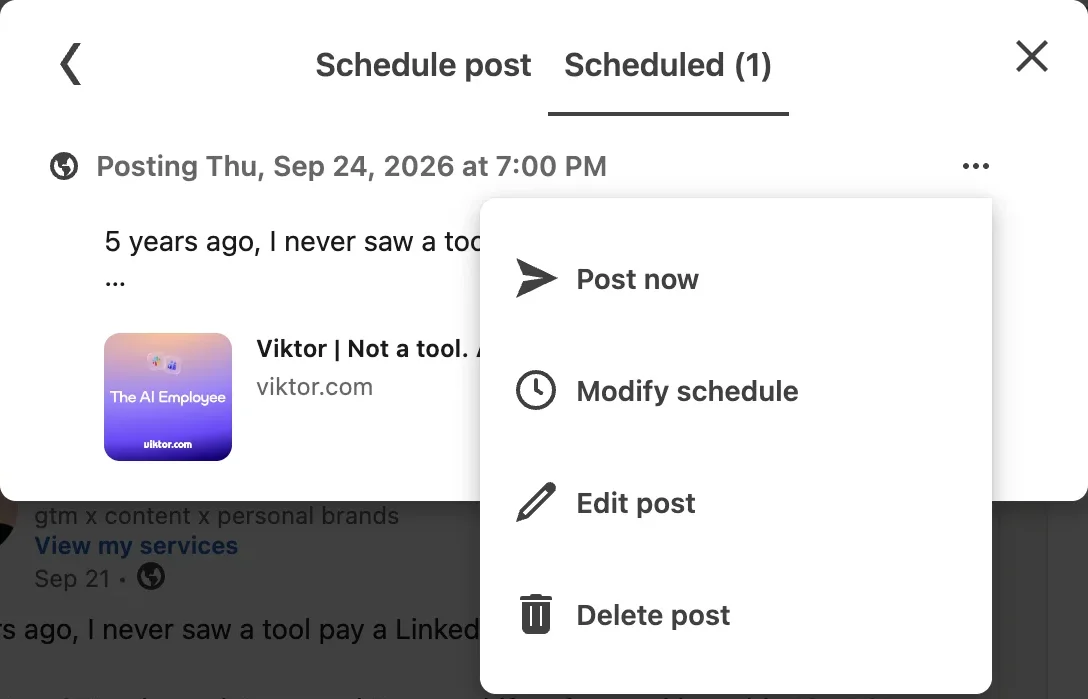
Your scheduled posts live behind the same clock icon. Click Start a post, click the clock, and switch from the Schedule post tab to Scheduled (n), where n is how many posts you have queued.
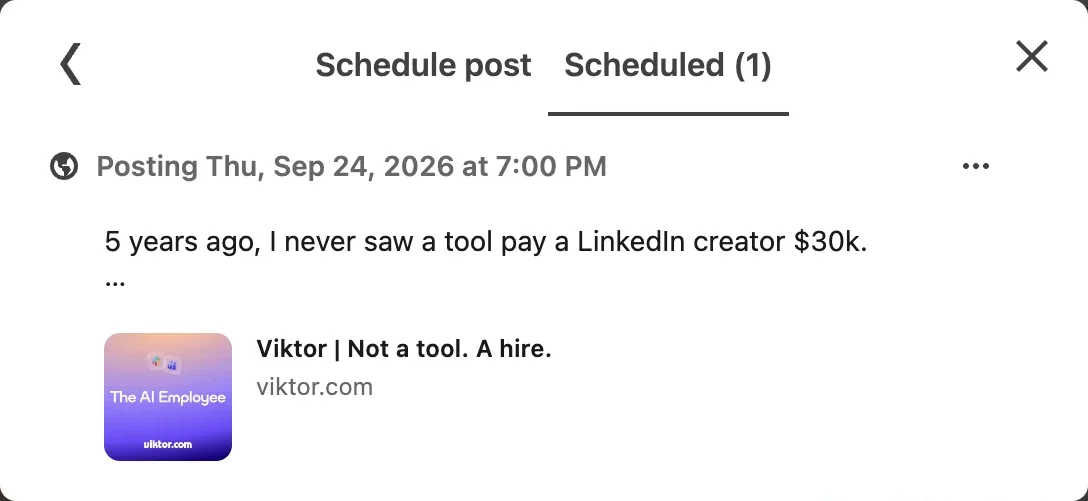
Click ⋯ on a post and you get four options:
- Post now. Publishes it immediately.
- Modify schedule. Changes the date or time.
- Edit post. Changes the text or media.
- Delete post. Removes it from the queue. It never goes live.
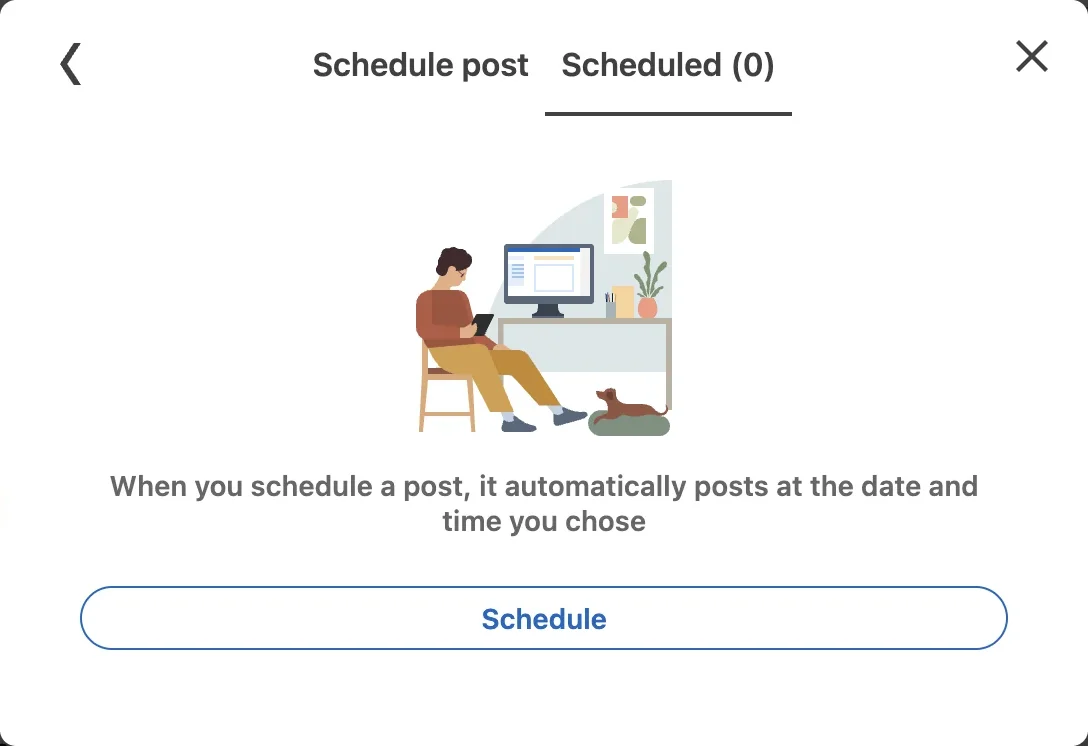
If the tab reads Scheduled (0), nothing is queued. LinkedIn shows an illustration and the line "When you schedule a post, it automatically posts at the date and time you chose". If you expected a post there, it has most likely already gone live: check your profile's activity.
How to schedule a post on a LinkedIn company page
Page admins schedule from the Page itself: open your Page's admin view, click Page posts, click Start a post, and use the same clock icon. You need to be a super admin or content admin to schedule Page posts, and the earliest slot is an hour out, not 10 minutes. Pages can schedule less than a personal profile can:
| What you want to schedule | Personal profile | Company page |
|---|---|---|
| Text, image, video or document post | Yes | Yes |
| Poll | Yes | No |
| Multiple photos | Yes | No |
| Repost with thoughts | Yes | No |
| Event, job or service post | No | No |
| Who can schedule | You | Super admins and content admins |
Polls trip people up because several scheduling guides say polls can't be scheduled at all. That's only true for Pages. I scheduled a poll from a personal profile without any problem.
A PR-firm founder I wrote for wanted a salary poll queued on his firm's Page for a Monday morning, and the Page wouldn't let us schedule it. We scheduled it from his personal profile instead, and it got more votes than anything the Page had posted all year.
Why can't I schedule my LinkedIn post?
Almost every failed schedule comes down to one of four things:
- The post type isn't supported. From a personal profile, events, jobs and services can't be scheduled. Add one and LinkedIn shows an error message. On a Page, polls, multiple photos and reposts are also out.
- The time is too close or too far. Anything under 10 minutes away gets rejected (under an hour on a Page), and so does anything past 3 months.
- You're not a Page admin. Scheduling for a Page needs super admin or content admin access.
- The post is too long. Past 3,000 characters LinkedIn greys out the Post button. Check your length with the character limits guide.
If a post went out at the wrong hour, check your device clock. LinkedIn sets the time from your device's time zone, so a laptop still set to another city after a trip schedules for that city's clock. A founder I wrote for ran his company from Bangalore and sold almost entirely to US buyers. He scheduled a post for 8:00 AM, meaning New York's morning, and LinkedIn took it as 8:00 AM on his laptop's clock. It went out late the night before in New York. From then on we did the time-zone maths before anyone touched the picker.
If a scheduled post "disappeared", it has usually been published already or deleted. On a Page, LinkedIn Help says scheduled posts from an admin who gets removed move to the admin who removed them. An HR-tech CEO I wrote for messaged me in a panic the week her marketing manager left: the Page's queue was gone. It wasn't. She'd removed him as admin, so his scheduled posts had moved to her, and it took us twenty minutes of clicking to find them.
Do scheduled LinkedIn posts get less reach?
No. Nothing LinkedIn has published says a scheduled post is treated differently from one you post by hand. It arrives in the feed as a normal post at the time you set. A management consultant I wrote for spent most weeks on a plane, so every Sunday evening we queued his whole week in one go. Nobody in his comments could tell which posts were scheduled and which he'd typed in an airport lounge. His numbers couldn't tell either.
What does matter is spacing. I analyzed 24,745 LinkedIn posts and compared each one with its author's usual numbers. Posts published within 12 hours of the same author's previous post got 16% fewer likes and 15% fewer comments than that author's norm. The day and hour barely mattered. So if you batch a week of posts, space them at least 12 hours apart.
Where LinkedIn's scheduler falls short
For one person posting a few times a week, it's fine. Once you post most days or look after more than one account, these start to hurt:
- One account at a time. Your profile and each Page have separate queues, and you switch between them to check.
- No calendar. The Scheduled tab is a list. You can't see your week at a glance.
- Three months out, at most.
- No repeats and no bulk upload. Every post is scheduled by hand, one at a time.
- No analytics next to the queue. What performed lives somewhere else.
Scheduling with Oiti
If you post every week, it's worth a look. Oiti is the AI clone for LinkedIn content: it drafts posts from what you believe and the way you actually talk, then schedules them through LinkedIn's official APIs. You don't install a browser extension or hand over your LinkedIn password.
- One calendar for 13 accounts. Up to 3 personal profiles and 10 company pages, planned on one calendar instead of separate queues.
- Analytics on the same screen. Impressions, reach, follower growth and engagement for up to 12 months, so the next post you schedule is based on what worked.
- Drafting and scheduling in one place. You stop copying text from one tool into another.
If you're comparing options first, here's my round-up of the best LinkedIn scheduling tools.
The cheat sheet
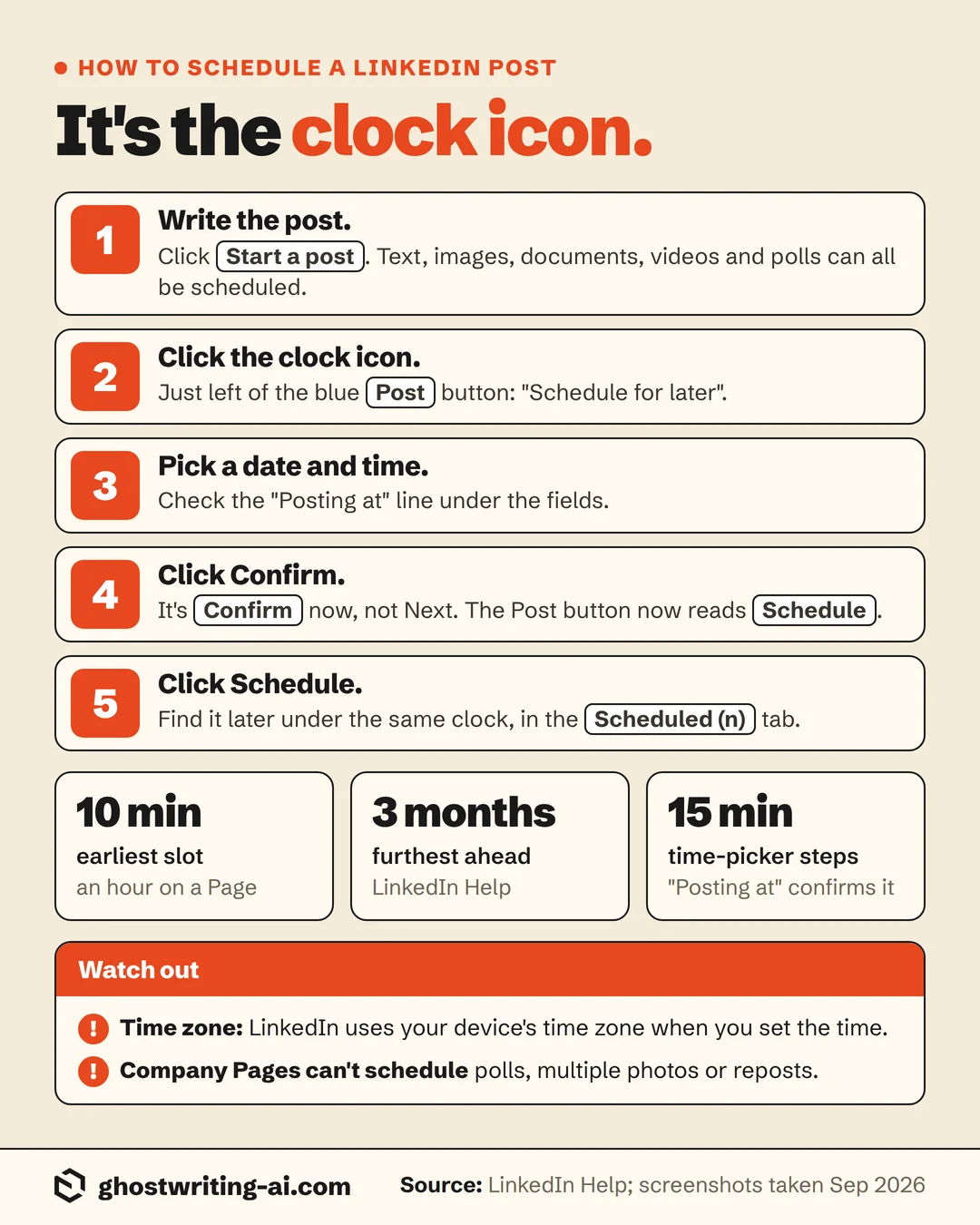
The bottom line on scheduling a LinkedIn post
Write the post, click the clock next to Post, pick a time, click Confirm, then Schedule. It's free, and a scheduled post goes out like any other. If you batch a week, keep the posts at least 12 hours apart.
The mistake that matters is the time zone: LinkedIn takes the time from your device, so check your clock before you pick a slot. After that, keep an eye on the Scheduled tab. A physician who ran a telehealth startup had a cheerful post about Monday routines queued for the morning a big health-data breach story broke in her field. She caught it in the Scheduled tab over coffee and pushed it a week with Modify schedule. Ever since, I tell clients to glance at that tab on any morning the news turns.
Frequently asked questions
- Can I schedule LinkedIn posts for free?
- Yes. The scheduler is built into LinkedIn's post composer and free on every personal profile and company page. Click the clock icon next to Post.
- How do I find my scheduled posts on LinkedIn?
- Click Start a post, click the clock icon, and open the Scheduled (n) tab. Every queued post is listed there with its date and time.
- How do I edit a scheduled post on LinkedIn?
- Open the Scheduled tab, click ⋯ on the post and choose Edit post to change the text, or Modify schedule to change the time.
- How far in advance can you schedule a LinkedIn post?
- Up to 3 months ahead, and no sooner than 10 minutes from now (an hour for company pages), according to LinkedIn Help. The time picker moves in 15-minute steps.
- Can you schedule a poll on LinkedIn?
- Yes, from a personal profile. Company pages can't schedule polls, multiple photos or reposts.
- Can you schedule a repost on LinkedIn?
- Yes, if you choose Repost with thoughts: the composer has the same clock icon. Repost instantly publishes right away and can't be scheduled.
- Do scheduled posts do well on LinkedIn?
- Yes, as well as posts you publish by hand. LinkedIn hasn't said it treats them differently. Spacing matters more: in my analysis of 24,745 posts, posting again within 12 hours of your last post meant 16% fewer likes.
- Why did my scheduled LinkedIn post go out at the wrong time?
- LinkedIn uses your device's time zone when you set the time. If your laptop or phone was set to another zone when you scheduled, the post goes out on that zone's clock.
Schedule a month of posts in one sitting
Oiti is the AI clone for LinkedIn content. It drafts posts that read like you typed them, then schedules them to up to 3 profiles and 10 company pages through LinkedIn's official APIs. The analytics sit right next to the calendar. 7 days free.
Start free7 days free.