LinkedIn how-to
How to Repost on LinkedIn (and When to Add Your Thoughts)

Aitijya Sarkar · Updated
Founder - Oiti | LinkedIn ghostwriting | 100M+ views
Quick answer: Click the repost icon (two circling arrows) under the post, then choose Repost with thoughts to add your own text on top, or Repost instantly to share it as it is. To undo a repost, click the ⋯ on it and choose Delete post.
LinkedIn renamed the repost options, so a lot of guides still describe a menu you won't find. I took the screenshots below this week. The button takes two clicks. The line you add on top, or don't, is where most reposts go flat. I wrote that line for founders and consultants for six years. Most of the bad ones were one word long.
How to repost on LinkedIn
- 01
Click the repost icon.
Under the post, click the two circling arrows between Comment and Send. A small menu opens.
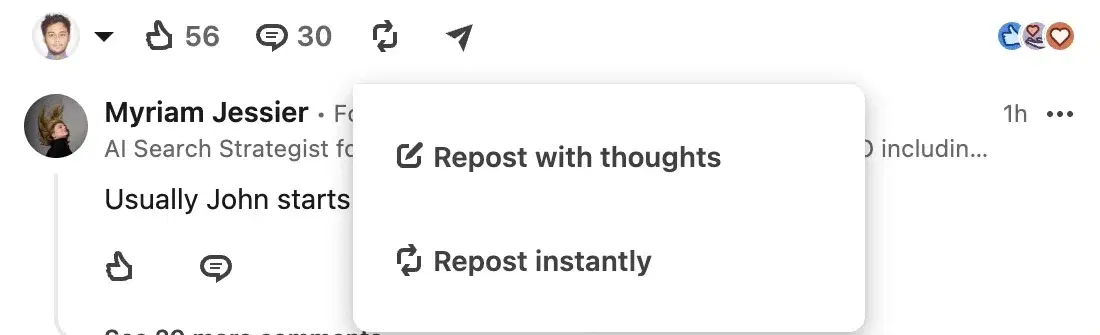
The current menu has two options: "Repost with thoughts" and "Repost instantly". - 02
Pick an option.
Repost instantly shares the post to your network straight away, with nothing to write. Repost with thoughts opens a composer with the original post attached underneath.
- 03
Write your thoughts (if you chose that).
Add a line or two, and @mention the author if you like. Use "Post to Anyone" to change who sees it.
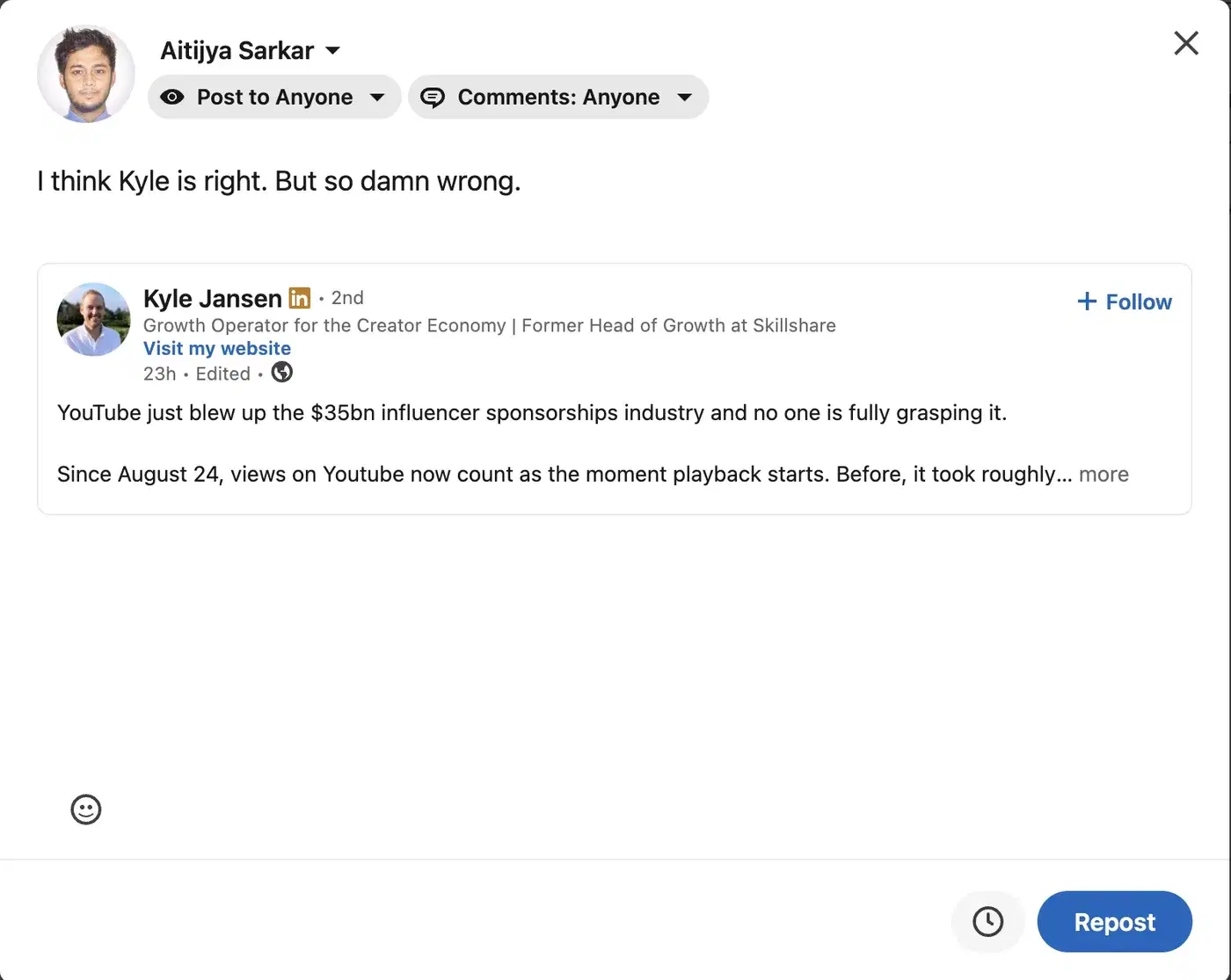
Repost with thoughts opens the composer with the original post embedded; the clock icon next to Repost means it can be scheduled. - 04
Click Repost.
Your repost goes live and a confirmation appears with a link to view it. If you'd rather it went out later, click the clock icon instead and pick a time.
How to repost on the LinkedIn app
On your phone, tap Repost under the post and pick one of the two options. If you add thoughts, type them, tap the audience dropdown next to your name to choose who sees it, then tap Post. LinkedIn Help still calls the options "Repost with your thoughts" and "Repost", while the desktop menu reads "Repost with thoughts" and "Repost instantly". Same options, new labels.
Repost instantly or repost with thoughts?
Add thoughts when you have something to say about the post. Repost instantly when the post speaks for itself and you just want your network to see it.
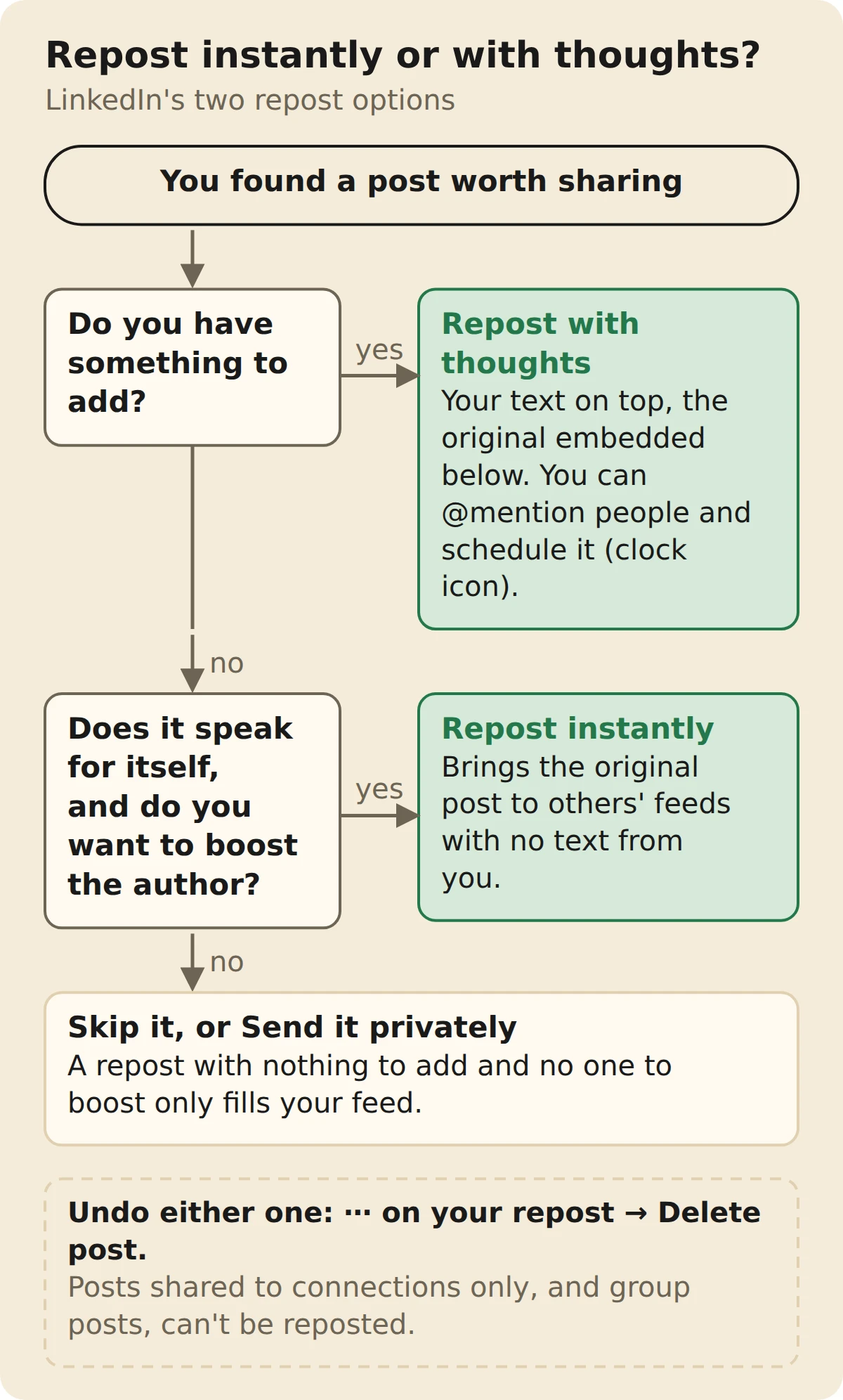
| Repost instantly | Repost with thoughts | |
|---|---|---|
| What your network sees | "[Your name] reposted this" above the original | Your text, with the original post embedded below |
| Your own text | None | Yes, above the original |
| @mention the author | No | Yes |
| Can be scheduled | No, it's instant | Yes, with the clock icon |
| Edit afterwards | Nothing to edit | Edit post changes your text |
| Best for | A colleague's launch or hiring post | Anything you have a view on |
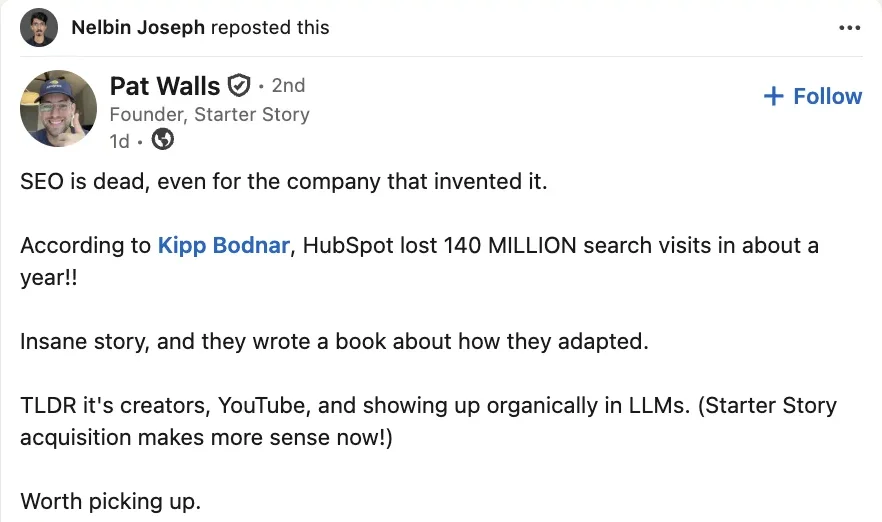
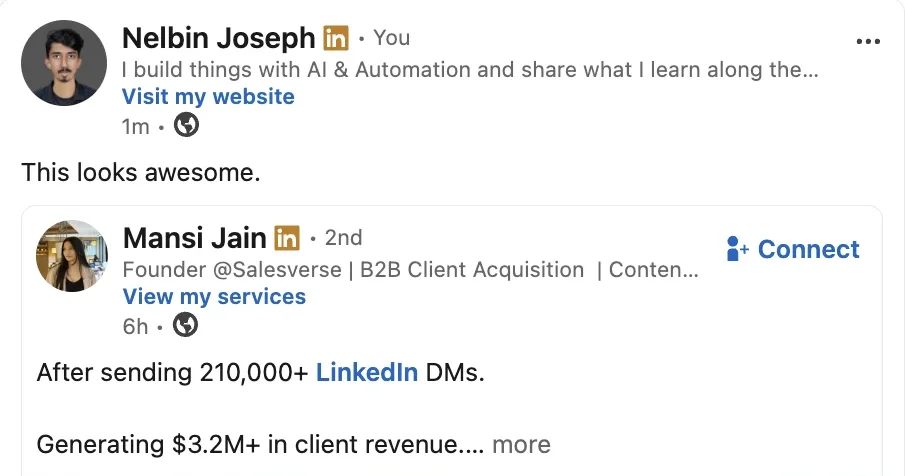
My rule for clients: if you can't add a sentence that the original author didn't already say, repost instantly or don't repost. Look at the example above. "This looks awesome." adds nothing an instant repost wouldn't.
A fractional CMO I wrote for used to Repost instantly every client launch she liked. Nothing came of it, not even a like from the client. Then she started adding two lines on what the launch meant for the kind of buyer she works with. The clients started turning up in her comments, and a couple of their customers did too.
The exception is a post that's already doing a job. A recruiter I worked with reposted her clients' hiring posts instantly, with no commentary, and that was the right call. She wanted applicants clicking through to the original, not reading her take on it.
What to write when you repost
One or two lines: why the post is worth your network's time, and what you think of it. Five openers I use:
- The disagreement. "I think [author] is right. But [the part you'd push back on]." That's the line in the composer screenshot above.
- The receipt. "We tried this at [company]. Here's what happened: [one result]."
- The pointer. "Most people will skim this. Read the part about [X]. It's the bit we got wrong last year."
- The question. "@[author], how would this work for a team of [size]?" It gives the author a reason to reply.
- The credit. "@[author] has been saying this for a year. Worth reading the whole thing."
Mentions work in the with-thoughts text like anywhere else. How to tag someone on LinkedIn covers what to do when a name won't go bold.
The question works best when it's specific. A developer advocate I wrote for reposted a framework maintainer's release post with one question: how the new caching would behave in a monorepo. The maintainer answered in the comments, and that thread ran longer than the one under the original.
You can repost your own posts too, and the same rule applies. A VC I wrote for reposted a year-old post where she'd called a market shift early, with one line on top about what she'd got wrong. It did better than the original had.
How to undo or delete a repost
You undo a repost by deleting it. Find the repost on your feed or in your profile's activity (All activity → Posts), click the ⋯ in its top-right corner, choose Delete post and confirm with Delete. The original post isn't touched.
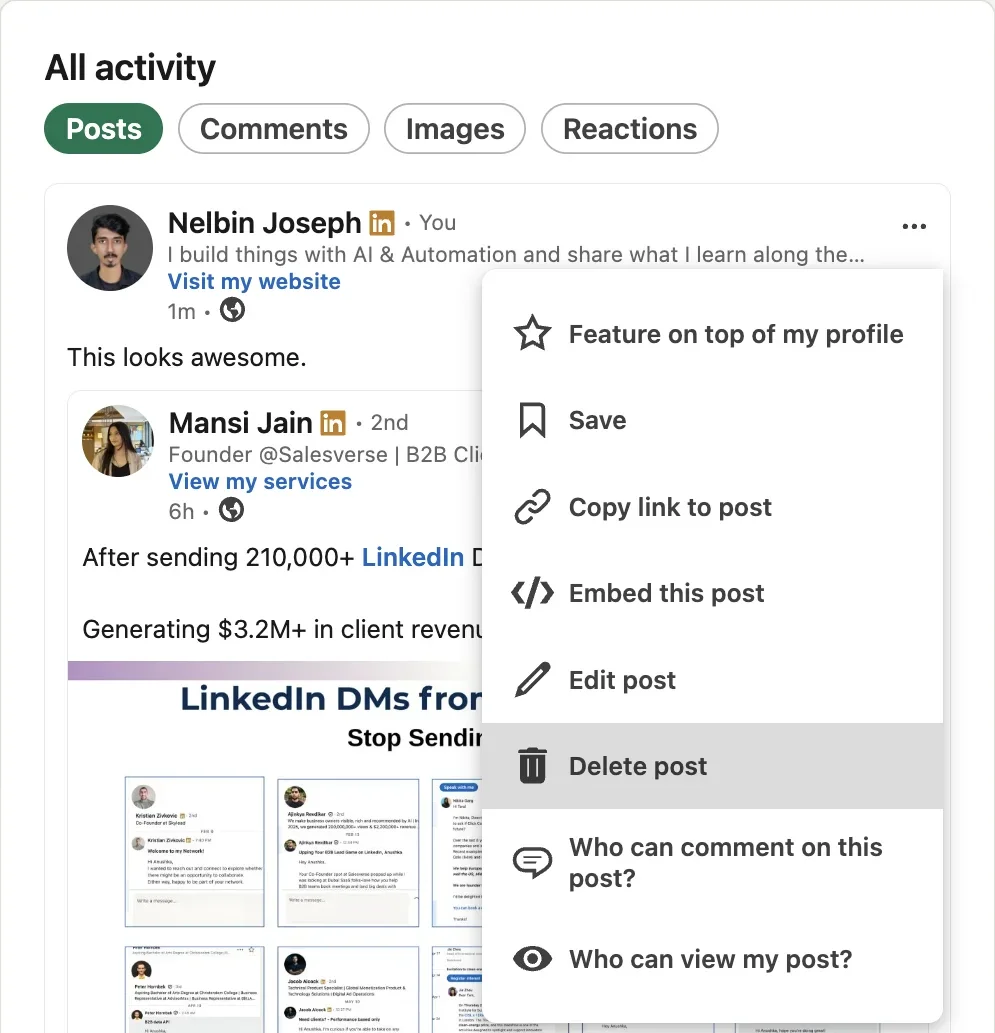
If you only want to change what you wrote, choose Edit post from the same menu instead.
How to repost as a company page
Page super admins can repost as the Page from its member view:
- Open your Page's admin view and click View as member.
- Find the post and click the repost icon.
- Choose either option. If you add thoughts, click the dropdown next to your name.
- Under Posting as, choose the Page. You can also set who can see it and switch comments on or off. Click Done.
- Click Post. It appears in your followers' feeds with the Page's logo.
Can you schedule a repost?
Yes, on a personal profile, if you repost with thoughts. The composer has the same clock icon as a normal post, so you can pick a date and time and it goes out then. Repost instantly can't be scheduled, because it's instant. Company Pages can't schedule reposts: LinkedIn lists reshares among the post types a Page can't schedule. The full walkthrough is in how to schedule a LinkedIn post.
Repost vs share vs send
A repost puts the post on your feed for your network. Send shares it privately in a message. "Share" is the older name for reposting, and some guides still use it. A private Send doesn't show up in the post's list of reposts. A public repost does, so the author can see who reposted and read what they wrote.
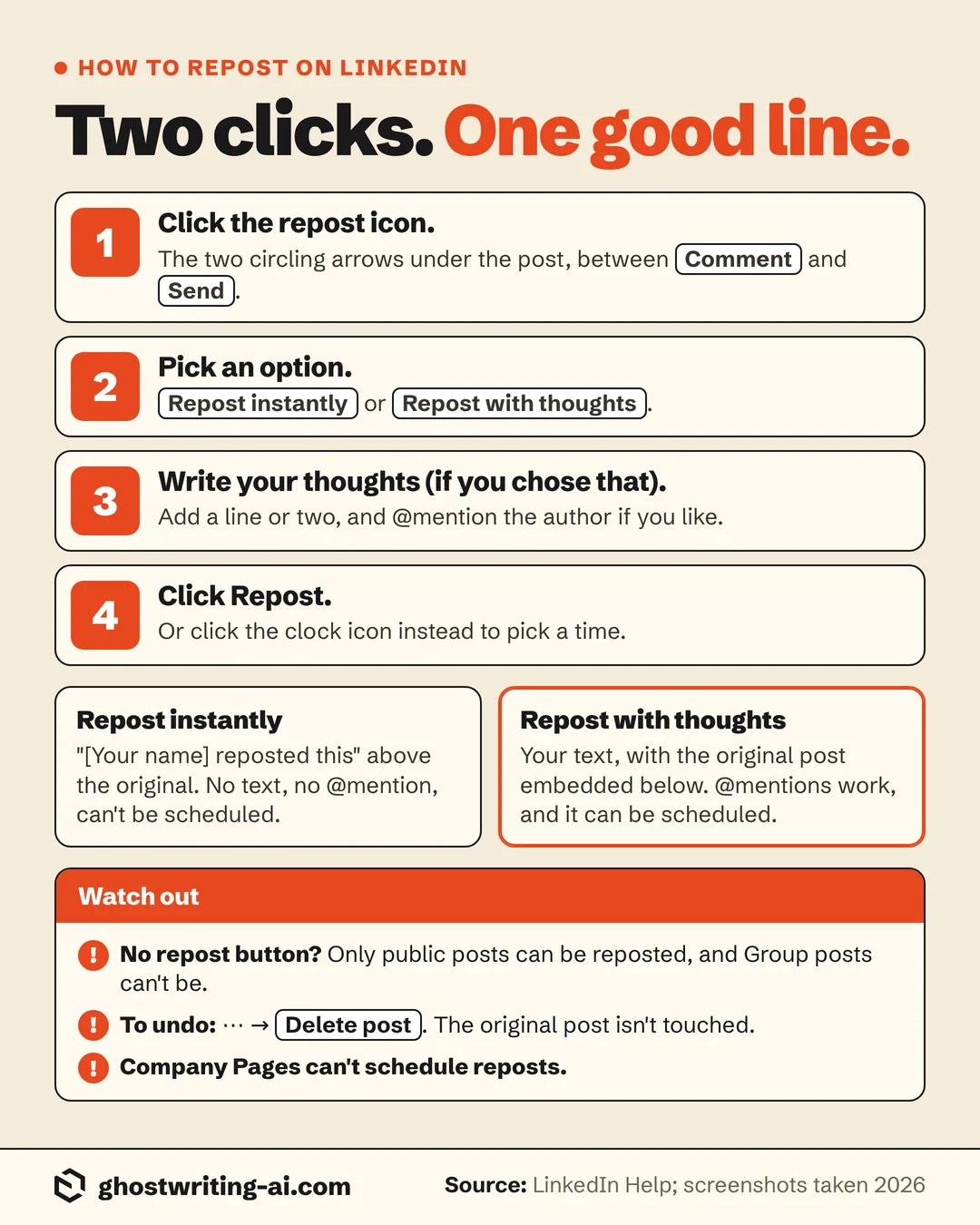
The cheat sheet
The bottom line on reposting
Click the two circling arrows, then pick Repost with thoughts if you have something to add or Repost instantly if you don't. To undo either one, open the ⋯ on your repost and choose Delete post.
The mistake that matters is the with-thoughts repost that says nothing. "This looks awesome." is an instant repost with extra typing. A restaurant-group owner I wrote for used to put "Proud partner!" on top of every supplier post he reposted. We cut it down to the ones where he could say what that supplier had changed on his menu. He reposted far less often, and his feed stopped reading like a supplier noticeboard.
Free post generator
Say something the original post didn't
A repost with thoughts is a post you wrote. Oiti's free post generator turns your reaction into a few sharp lines, so your repost says something besides "this looks awesome".
Open the post generatorFrequently asked questions
- How do I repost on LinkedIn?
- Click the repost icon (two circling arrows) under the post. Choose Repost instantly to share it as it is, or Repost with thoughts to add your own text on top, then click Repost.
- What is the difference between Repost and Repost with thoughts on LinkedIn?
- Repost instantly shares the post with a "[your name] reposted this" line and nothing else. Repost with thoughts creates your own post with the original attached underneath, so you can add a comment, @mention people and schedule it.
- Why can't I see the repost option on LinkedIn?
- The post is probably shared with connections only, or it's a Group post, and neither can be reposted. LinkedIn may also limit reposting from people you're not connected with. You can still use Send to share it privately.
- How do I undo a repost on LinkedIn?
- Click the ⋯ on your repost, choose Delete post and confirm. It removes your repost, not the original.
- Is it better to repost or post on LinkedIn?
- Post, if you have something of your own to say. A repost with thoughts is still your post, with someone else's attached. An instant repost mostly helps the other person. The LinkedIn algorithm guide covers how the feed treats what you publish.
- Can a company page repost a post on LinkedIn?
- Yes. A Page super admin opens View as member, clicks the repost icon, and picks the Page under Posting as. Pages can't schedule reposts, though.
- Can you schedule a repost on LinkedIn?
- On a personal profile, yes, when you repost with thoughts: click the clock icon in the composer instead of Repost. Instant reposts go out immediately, and Pages can't schedule reposts.
Your reposts are posts too. Write them like it.
Oiti is the AI clone for LinkedIn content. It learns how you actually write and drafts posts, and the lines on top of your reposts, so they read like you typed them. Start your free trial. 7 days free.
Start free7 days free.