LinkedIn how-to
How to Tag Someone on LinkedIn (Posts, Comments, Photos and Pages)

Aitijya Sarkar · Updated
Founder - Oiti | LinkedIn ghostwriting | 100M+ views
Quick answer: Type @ followed by the person's or company's name, pick them from the dropdown, and post. The name turns bold in the composer, becomes a link once the post is live, and LinkedIn notifies them. For photos, use Tag in the photo editor instead.
I've tagged people in client posts for six years, across 50-odd founders, coaches and consultants. Nobody ever asked me how. They asked why the tag didn't work, and the answer was nearly always the same: the name never went bold before they hit Post.
How to tag someone in a LinkedIn post
- 01
Start a post.
On your LinkedIn homepage, click Start a post.
- 02
Type @ and the name.
Type @ with no space after it, then start typing the name. A dropdown suggests people and company pages as you go. If the name is common, add their company: LinkedIn's own example is "Jane Doe LinkedIn".
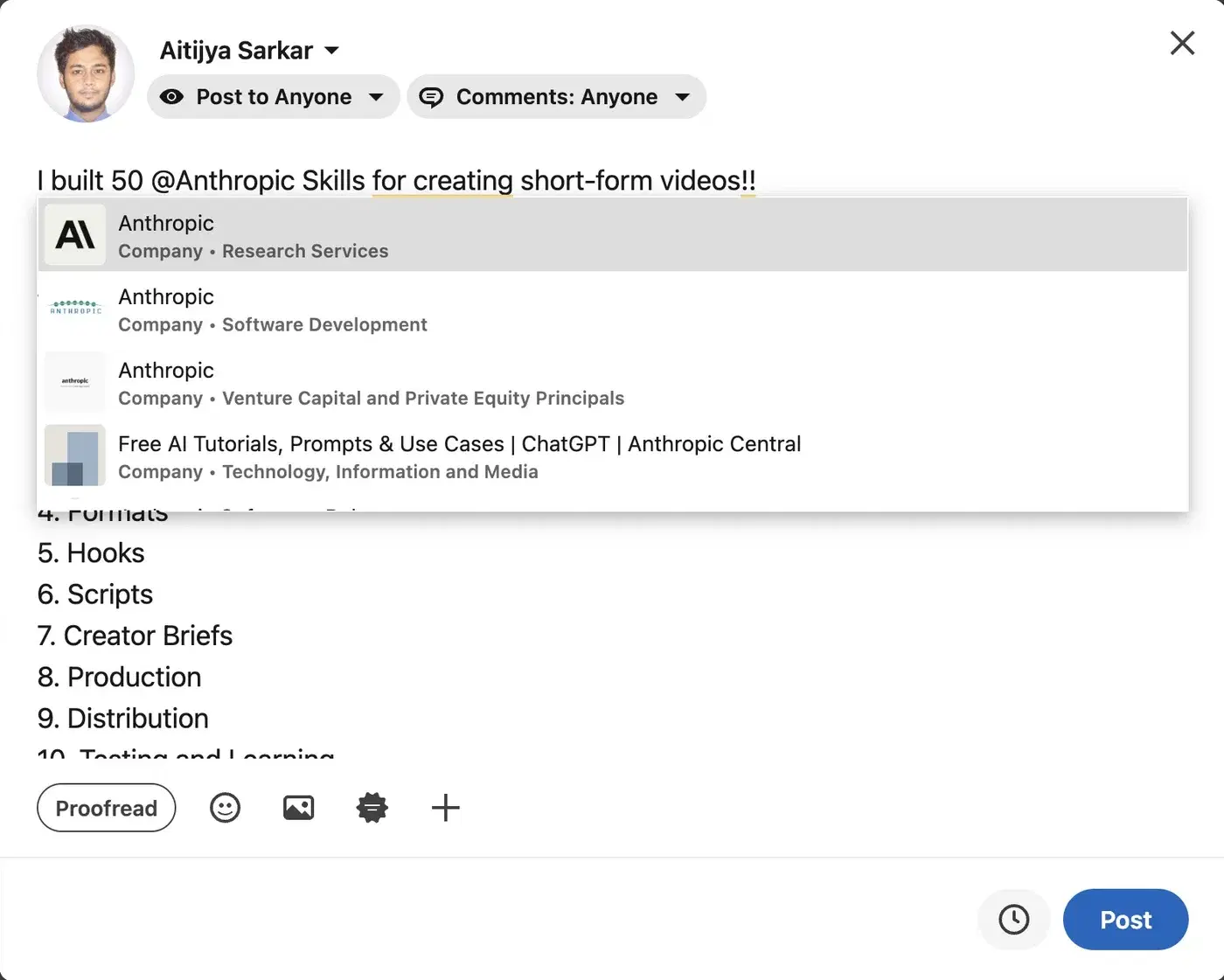
Typing @Anthropic brings up several company pages, each labelled "Company" with its industry underneath. - 03
Click the right match.
A mention only counts if you select it from the list. Typing the full name and carrying on doesn't do it.
- 04
Check that it went bold.
If the name is still regular text, it's just text, and nobody gets notified. An ecommerce founder I wrote for in 2022 found this out on her launch post. She typed her co-founder's full name, never clicked it in the list, and he heard about the post two days later from a customer.
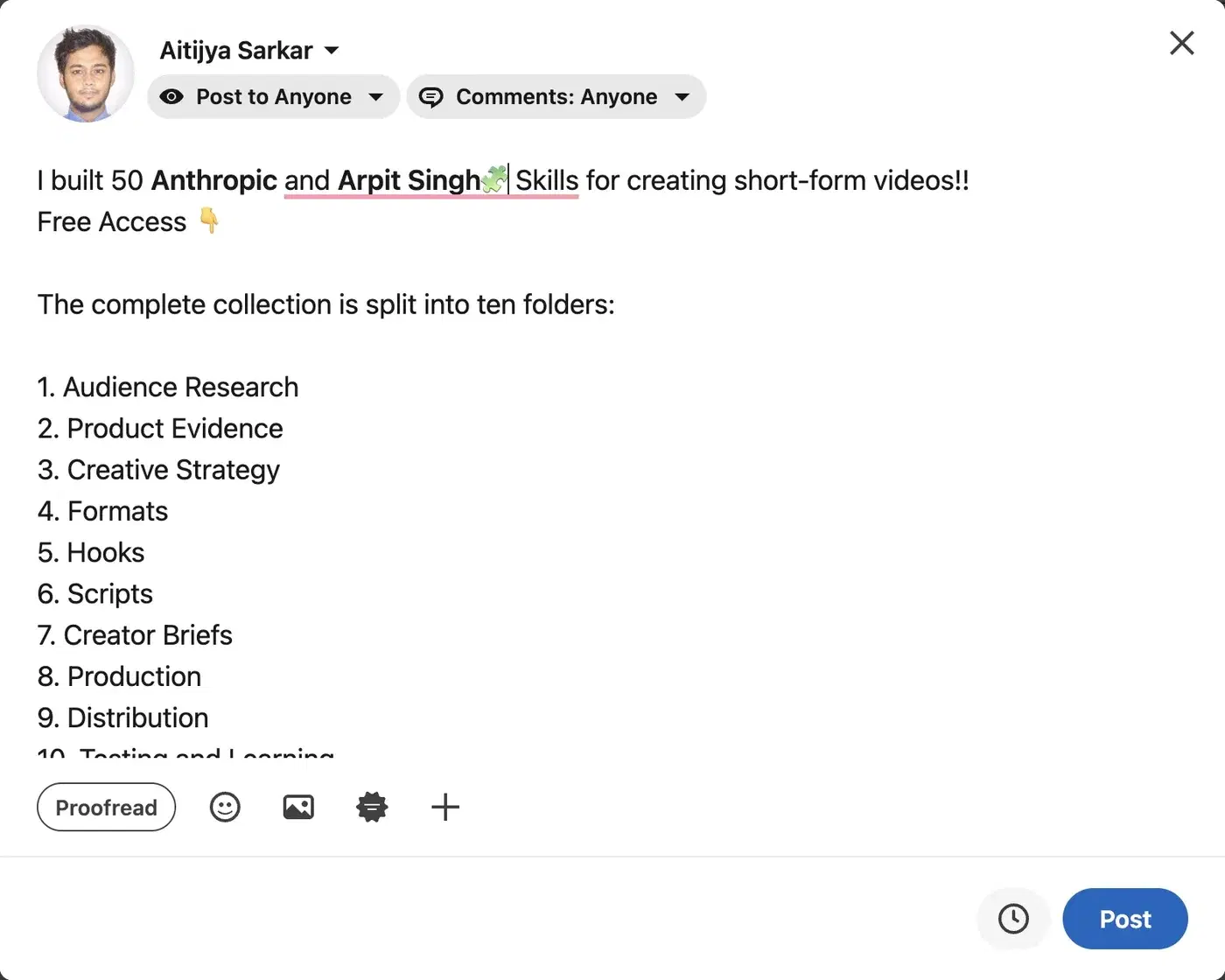
A selected mention shows in bold while you draft (here, Anthropic and Arpit Singh); it turns into a link only after publishing. Plain text means the tag didn't take. - 05
Post.
The bold names turn into links to the profile or page, and LinkedIn sends each person an email and an app notification.
You don't need to be connected to someone to mention them.
How to tag someone on the LinkedIn app
Same steps. The @ just lives on your keyboard.
- Tap Post in the navigation bar.
- Tap the @ key on your keyboard and start typing the name.
- Tap the right person or page in the suggestions.
- Tap Post.
How to tag a company on LinkedIn
Type @ and the company name, then pick the entry labelled "Company". Watch for lookalikes. When I typed @Anthropic, several pages came up with that name and only one was the real company. An agency owner I wrote for once thanked a client by tagging a dead page with the same name. The real client never saw it, and the only comment was someone asking who that was. Read the industry line under each name before you click. Schools work the same way.
How to tag people in a LinkedIn photo
Photo tags are separate from @mentions, and you add them before you post.
- Start a post and add your photo. You can add up to nine images.
- In the photo editor, click Tag, then click on the photo. An "Add a tag" panel opens.
- Type the name, click the person to add the tag, and repeat for anyone else. You can tag up to 30 people per photo.
- Click Done, write your post and publish it.
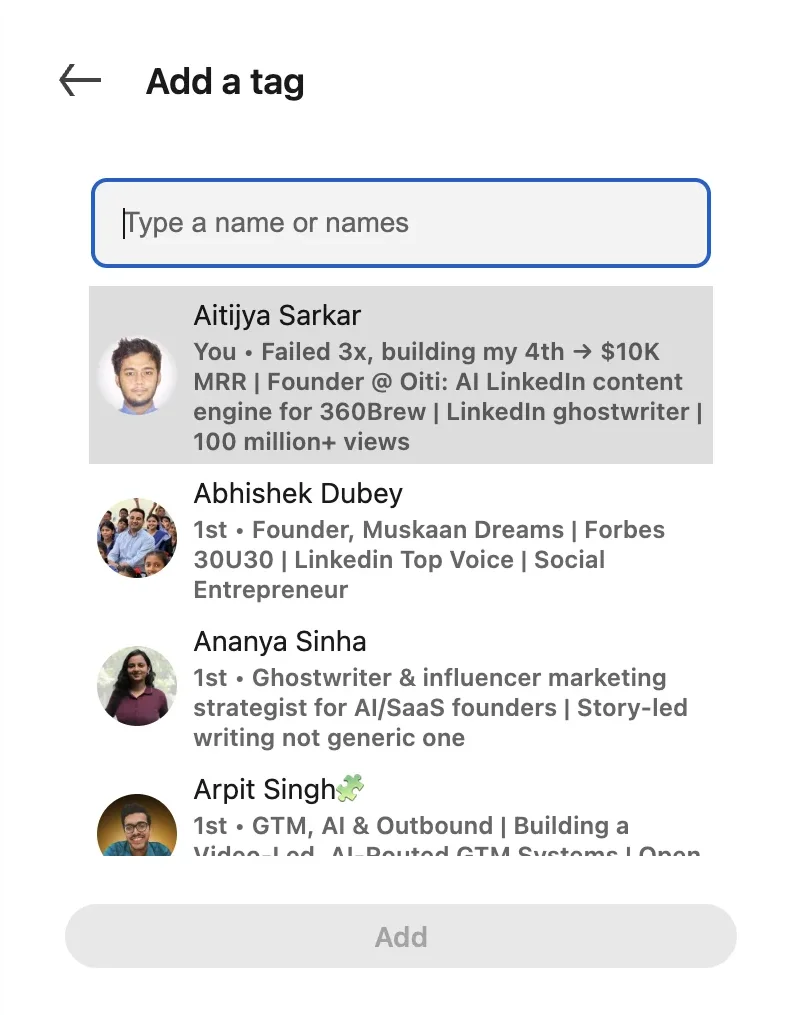
For a video post, put the @mention in the post text.
Can you tag someone after posting?
Yes for @mentions, no for new photo tags. To add a mention, click the ⋯ on your post, choose Edit post, type @ and the name, pick them from the dropdown and save. Comments edit the same way.
Once a post is live, you can remove photo tags but not add them. LinkedIn is blunt about it: "Only the text in a post can be edited." If you forgot someone, mention them in the text, or delete the post and publish it again with the tag.
A nonprofit ED I wrote for posted a gala photo with six board members in it and planned to tag them that evening. Once the post was live, there was no way to add a photo tag. We added them as @mentions in the text with Edit post instead. They all got notified, but the photo itself stayed untagged.
Source: LinkedIn Help: Edit a shared post.
Mention vs tag vs hashtag
A mention is an @name in the text. A tag is a name pinned to a photo. A hashtag is a topic label and notifies nobody. LinkedIn keeps "mention" and "tag" separate. Most people say "tag" for both, and that's fine.
| Mention (@) | Photo tag | Hashtag (#) | |
|---|---|---|---|
| What it is | A name in your text | A name attached to a photo | A topic word |
| Where it works | Posts, comments, reposts with thoughts | Photos | Post text |
| Notifies someone | Yes | Yes | No |
| Can you add it after posting | Yes, with Edit post | No | Yes, with Edit post |
The LinkedIn hashtags guide covers how many to use.
Why can't I tag someone on LinkedIn?
Usually you didn't pick the name from the dropdown, or the person has mentions switched off.
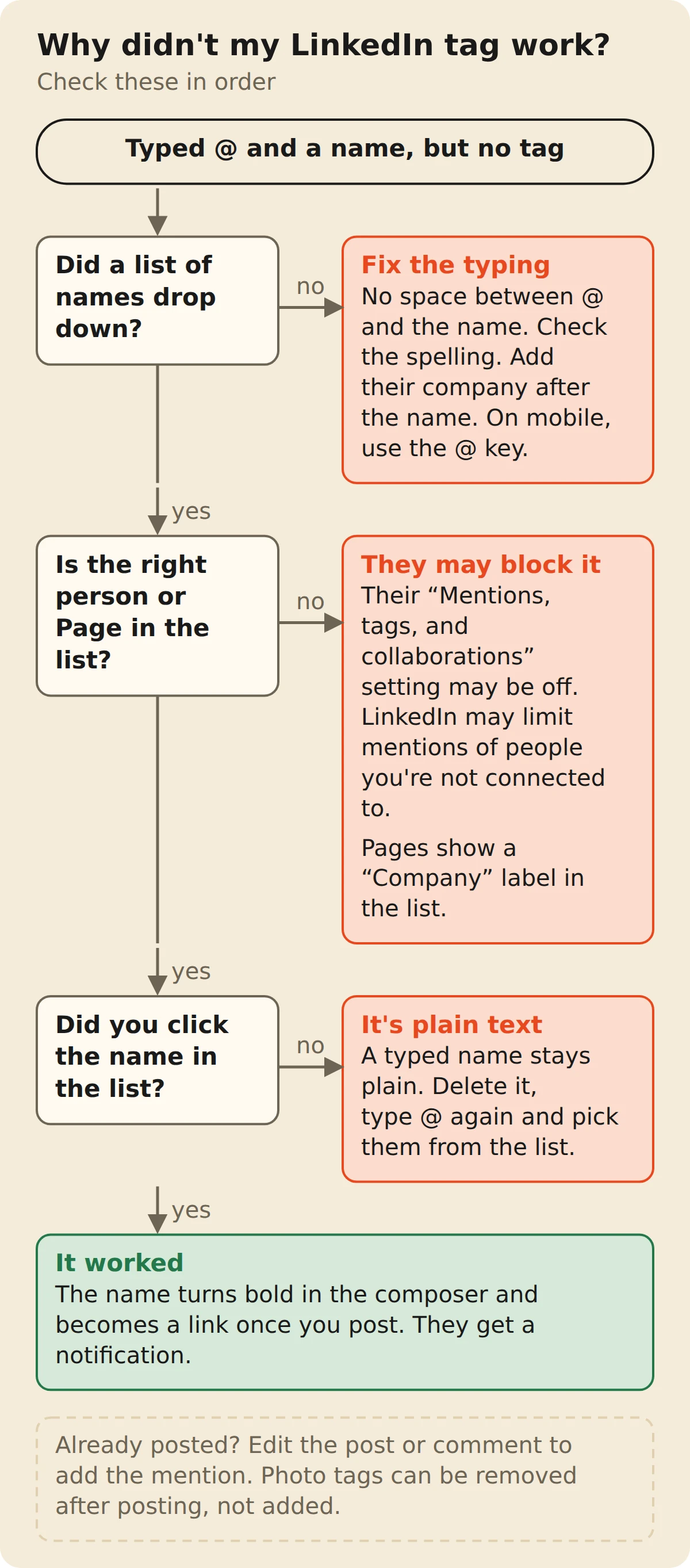
- No dropdown at all. There's a space between the @ and the name.
- They aren't in the suggestions. Try their full name plus their company, and use the name on their profile today. People change them.
- They've turned mentions off. LinkedIn tells you the member can't be mentioned.
- They aren't a connection. LinkedIn says it "may limit" these mentions, but it isn't a blanket rule. I tagged a 3rd-degree public figure while testing this page and got no block and no warning.
- The name is there but not bold. You typed it out instead of selecting it. Delete it and pick it from the list.
How to control who can tag you, and remove a tag
Go to Me → Settings & Privacy → Visibility → Mentions, tags, and collaborations, and switch "Allow mentions, tags, and collaborations" on or off. Off means nobody can mention or tag you in new posts, comments or photos, or invite you to collaborate. Existing mentions stay.
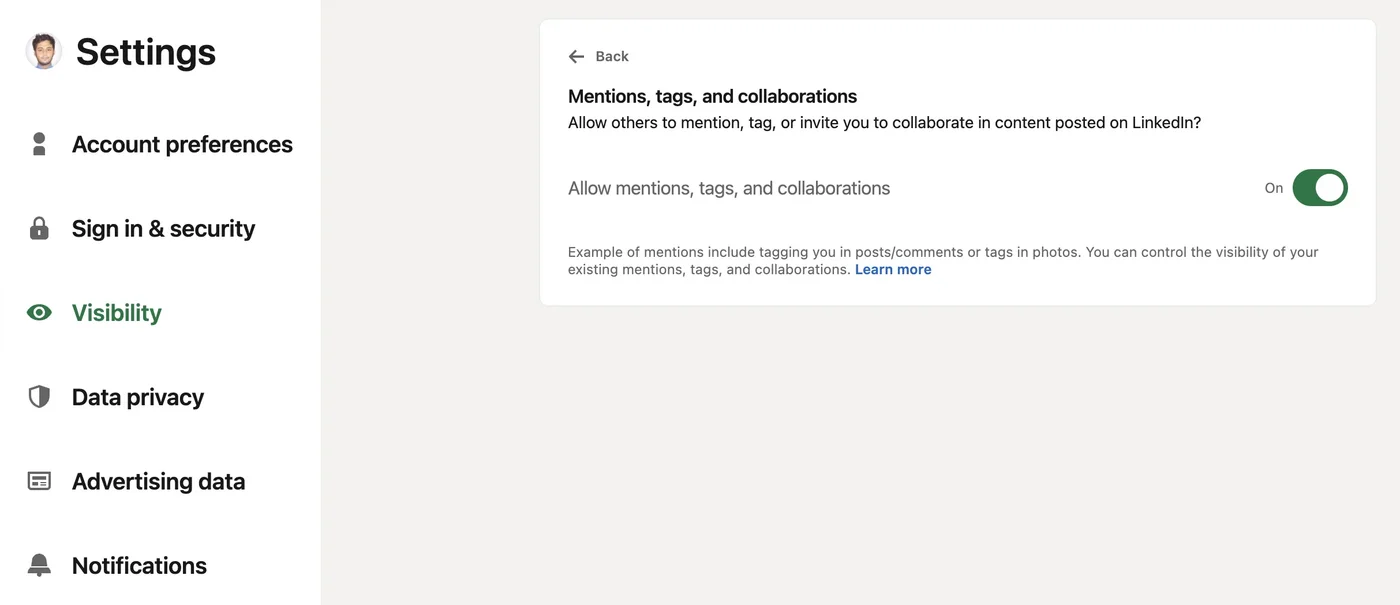
To remove a mention of yourself, click the ⋯ on the post or comment, choose Remove mention and confirm. Your name stays in the text, but the link to your profile goes. For a photo, click the Tag icon on the image, then the trash icon next to your name, and confirm. The person who tagged you isn't notified.
Source: LinkedIn Help: Choose whether members can mention, tag, or collaborate with you.
When to tag someone (and when not to)
Tag people who are part of the story: the client you helped, the colleague who had the idea, the author you're quoting. They'll want to see it.
- Say why they're tagged. "Thanks to @Name for the pricing teardown" beats a list of names at the bottom.
- Don't tag strangers for reach. A dozen founders who've never heard of you will read it as spam, and so will everyone else. The LinkedIn algorithm guide explains why relevance beats tricks.
- Ask first if it's sensitive. A post about someone's layoff or health isn't yours to tag them in.
A law-firm partner I wrote for wanted to tag 15 general counsel at the bottom of a post about a new ruling. Most had never met him. The post got a handful of likes, and over the next week a few of the names quietly lost their links, which is what Remove mention does. His next post tagged one associate and said what she'd spotted in the judgment. That one got a real thread going.
The cheat sheet
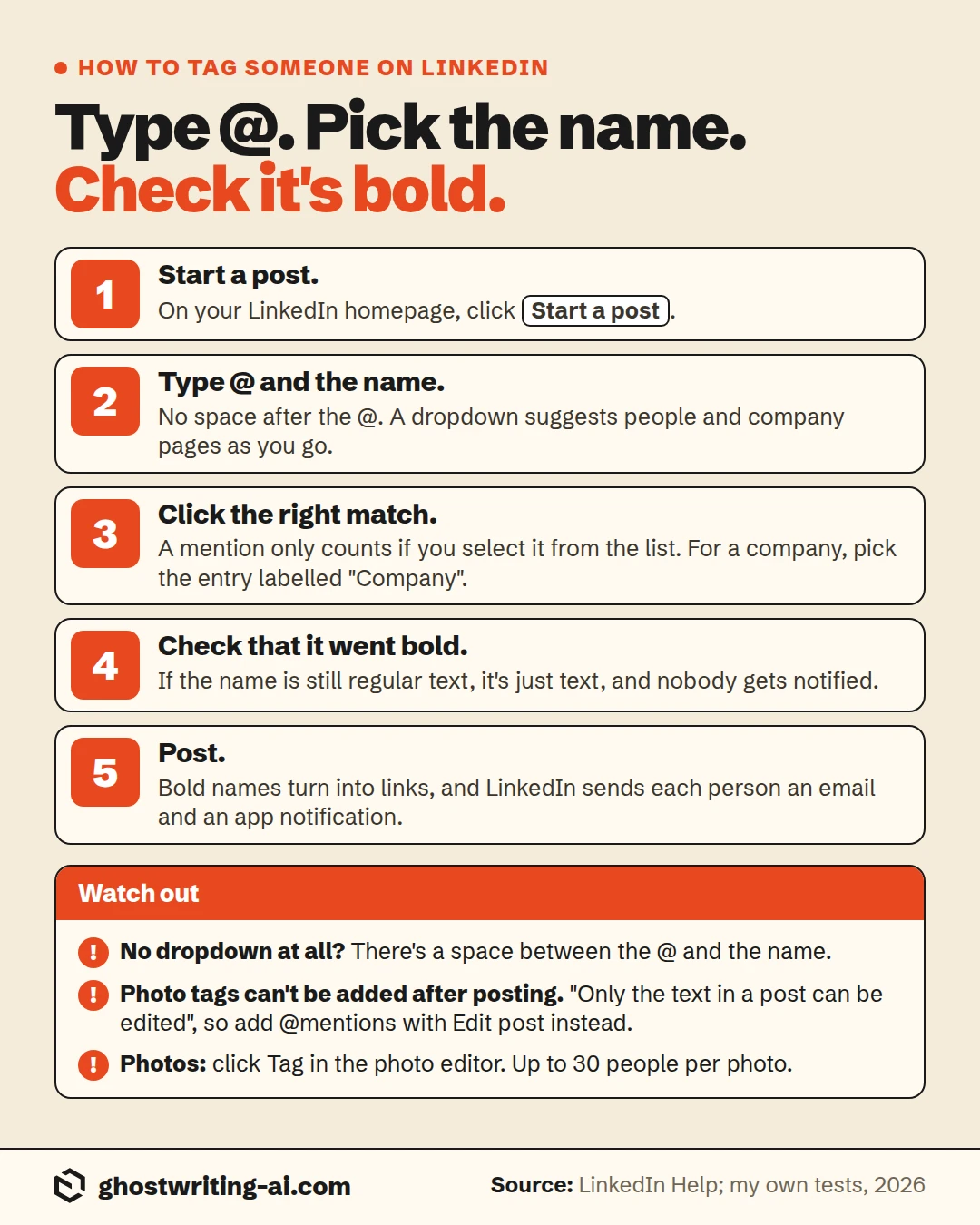
The bottom line on tagging someone on LinkedIn
Type @, click the name in the dropdown, and check it went bold before you post. That works in posts, comments and reposts with thoughts. Photo tags are the odd one out: you add them in the photo editor, and only before you publish.
The mistake that matters is a name you typed but never picked. It stays plain text and nobody hears about it. Once the bold is there, the tag itself is the easy part. A climate-tech founder I wrote for tagged one customer in a post about the pilot they'd run together, and said what the customer's ops lead had spotted that nobody else had. The ops lead reposted it with her own thoughts that afternoon, which is about as good as a tag gets.
Free comment generator
Tag them, then say something worth replying to
A tag brings someone into the thread. What you write next decides whether they answer. Oiti's free comment generator drafts a specific reply to any post, so you add something instead of "great point".
Open the comment generatorFrequently asked questions
- How do I tag someone on LinkedIn?
- Type @ and their name in a post or comment, click them in the dropdown, and post. The name goes bold, links to their profile once published, and they get an email and an app notification.
- Why can't I find the person I want to tag on LinkedIn?
- Remove any space after the @ and try their full name plus their company. If they still don't appear, they may have turned off "Mentions, tags, and collaborations", or LinkedIn may be limiting mentions of people you're not connected with.
- What is the difference between a tag and a mention on LinkedIn?
- A mention is an @name in a post or comment. A tag is a name attached to a photo in the photo editor. Both notify the person and link to their profile.
- How do I tag someone in a LinkedIn post after posting?
- Click the ⋯ on your post, choose Edit post, type @ and the name, pick them from the list and save. That works for mentions. You can't add new photo tags after posting, only remove existing ones.
- Does someone get notified when you tag them on LinkedIn?
- Yes. They get an email and an app notification when you mention them in a post or comment, or tag them in a photo, unless they've turned that notification off.
- How do I stop people from tagging me on LinkedIn?
- Switch off "Allow mentions, tags, and collaborations" under Settings & Privacy → Visibility → Mentions, tags, and collaborations. It blocks new mentions and tags. Existing ones stay until you remove them one by one.
- Can you tag someone in a LinkedIn repost?
- Yes, if you repost with thoughts: type @ and the name in your text above the original post. A plain repost has no text box. See how to repost on LinkedIn.
The tag gets their attention. The post has to earn it.
Oiti is the AI clone for LinkedIn content. It learns how you actually write and drafts posts that read like you typed them, so the people you tag land on something worth replying to. Start your free trial. 7 days free.
Start free7 days free.
How to tag someone in a LinkedIn comment
Click Comment under the post, type @ and the name, pick them from the list, then click Comment. The dropdown opens the moment you type the @, with suggestions from your network.
Give the person a reason to show up. "@Priya, you hit this exact problem last quarter. What did you change?" gets a reply. A bare "@Priya" under someone else's post usually doesn't.